

 | Keyword Detection |
This section contains more detailed information about automatic tagging of keywords detected in HyperText input.
This topic contains the following sections:
The Advanced Styles tutorial describes how you can define custom link classes, tags, and quads. Although these features are useful, it can be tedious to tag words by hand to use these styles.
To solve this problem, the HyperText component allows you to assign assets that specify lists of keywords that should automatically have particular styles applied. This feature can be helpful to stylize the names of key items, locations, or people in your game, as well as any other terms to which you might want to draw your players' attention. Moreover, defining keywords in assets lets you edit your text free from the need to manually tag anything, and allows you to modify your keywords at any time during production.
 Keyword Collections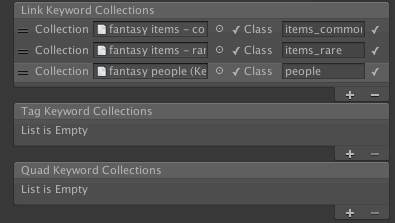
The HyperText package includes a base class, KeywordCollection, from which you can inherit to define your own keyword collection assets. It also includes a couple of built-in types (discussed below) to help you get started.
To detect keywords, assign KeywordCollection assets to the Link Keyword Collections, Tag Keyword Collections, and/or Quad Keyword Collections lists in the inspector for the HyperText component. For each link entry, you can optionally specify a link subclass name to designate the particular link style that should be used. For tags and quads, you must specify the identifier to use when tagging or replacing detected keywords. Any particular KeywordCollection asset may only be assigned to one of these lists, and only one time. For example, you may not map the same list of names to two different link subclasses.
Keywords Text Document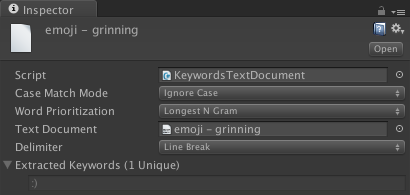
The included KeywordsTextDocument is a basic container for a Text, which specifies that the Text contains a list of keywords delimited by either commas or line breaks. The list of keywords found in the Text according to the matching and sorting criteria is displayed at the bottom.
Keywords Glossary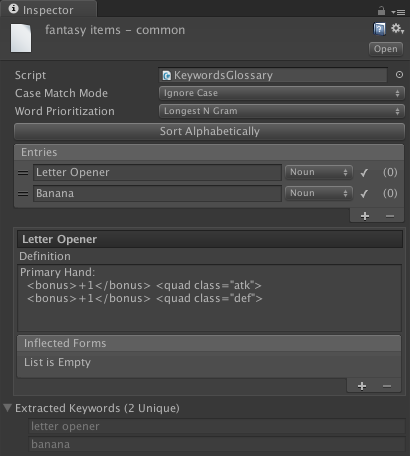
The included KeywordsGlossary asset type allows for more complex definitions of keywords, including specifications of synonyms and alternate word forms. Each entry also has a Definition field, which allows the specification of any text associated with the entry. For example, one particular entry might specify the keyword "biped" with the alternate word form "bipedal", both of which become unique keywords but which are associated with the same entry (i.e. definition). As with the KeywordsTextDocument, the complete list of extracted keywords is displayed at the bottom of the inspector.
See Also